
Overview
In version 5.2, WordPress added the Site Health feature to assist in diagnosing potential issues with your site. While this has been a welcome edition to WordPress, some of the warnings and errors need further information for you to be able to resolve.
Accessing Site Health
- Login to the WordPress Admin for your website.
- Go to Tools -> Site Health:
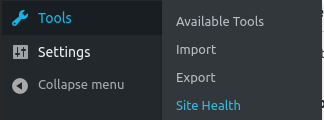
- You will now be able to see all of the Site Health data.
PHP Update Required
If the WordPress Site Health reports that your PHP version is out-of-date or that an update is required, you may see one of the following warnings:


This indicates that the PHP version for your site isn’t running one of the latest or supported versions.
Thankfully, Conetix makes this very easy to fix using Plesk. You can simply choose a new PHP version to update your site to a more recent PHP version.
After changing your PHP version, we also recommend reviewing your website error logs to check for any errors.
Unused plugins and themes
The Site Health will let you know about the unused plugins and themes within your website. The message may look like the following:

As we’ve covered previously in our blog article on unused plugins, despite disabling them they can still present as a security risk to you.
To fix these suggestions, we recommend:
- Take a backup of your site.
- Via WordPress, delete unused plugins and themes.
Outdated SQL Server
The WordPress Site Health will let you know if you’re running an outdated MariaDB SQL server. To ensure stability, Conetix keeps the SQL server locked to the major and minor version of MariaDB per server. While it may report as being out-of-date, updates are applied on a regular basis to ensure stability and security.
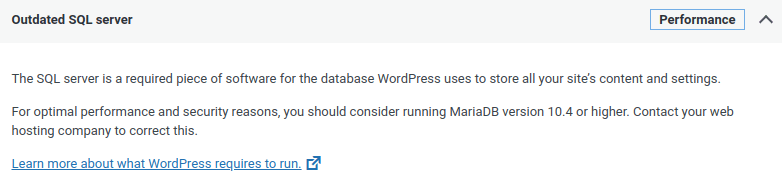
All of our systems are running MariaDB 10.3 or higher, with compatibility up to MariaDB 10.6. Where the version is linked to the distriubtion (eg, AlmaLinux), security fixes are backported and the version number therefore isn’t directly comparable when checking for security.
If you need a specific version we can usually facilitate this with a Virtual Private Server.
Loopback request timeouts
These errors can occur from time-to-time when your server / site is either very busy or doesn’t have enough resources to complete the request in time. In these instances, you may see the following error:
Loopback requests are used to run scheduled events, and are also used by the built-in editors for themes and plugins to verify code stability.

The loopback request to your site failed, this means features relying on them are not currently working as expected.
Error: cURL error 28: Operation timed out after 10001 milliseconds with 0 out of -1 bytes received (http_request_failed)
There are two areas to look at for a fix here.
The first is to look at performance issues with the site, where there’s either heavy resource issues being hit and therefore causing intermittent timeouts.
If you have your own Virtual Private Server, you can also increase the maximum number of PHP children per site (pm.max_children) to allow more processes to be run at once. These can be increased in the PHP Settings area within Plesk.
On older systems, the default was 5 children and this is sufficient for low-moderate sites without isues. On busier sites or where WooCommerce is involved you may need 10-20 max children set.
The second area to investigate is a plugin or theme incorrectly trying to initiate a PHP session. This can only be done before output has been sent back to the browser, meaning if it’s called in the wrong place then it will lead to errors. To find this error, you may need to go through your plugins and disable them one at a time to isolate which causes the issue.
Alternatively, if you have a developer who can scan the code, you’ll be looking for:
session_start()We then recommend contacting the plugin or theme developer for further assistance.