
Overview
2FA (2-Factor Authentication) or MFA (Multi-Factor Authentication) is a critical step of keeping your accounts secure, and it can be configured on your Conetix Control Panel login.
Instructions
- Log into your Conetix Account via the Conetix Control Panel.
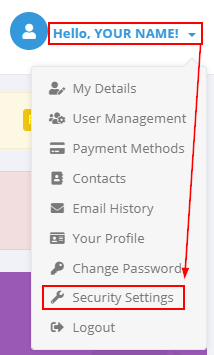
- In the top right of the page, Click Hello, Your Name!, and it will display a drop down.
- From the drop down click Security Settings:
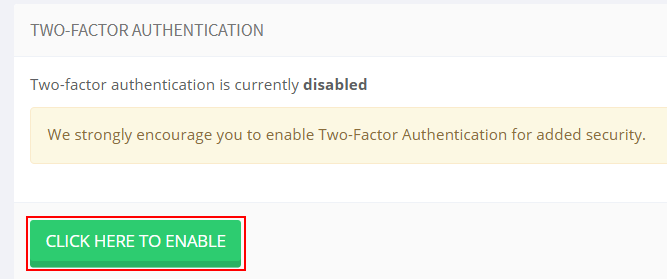
- To begin configuring Two-Factor Authentication, click Click here to Enable:
- If you already use an Authenticator App such as Google Authenticator or Microsoft Authenticator, choose the Time Based Tokens option.
- If you don’t use an Authenticator App you can setup 2FA via an SMS by choosing SMS Center Two-Factor Authentication.
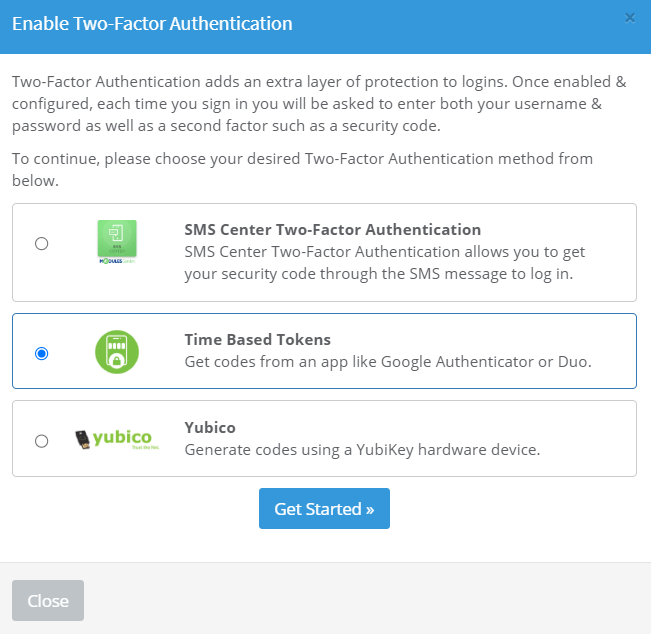
- If you don’t use an Authenticator App you can setup 2FA via an SMS by choosing SMS Center Two-Factor Authentication.
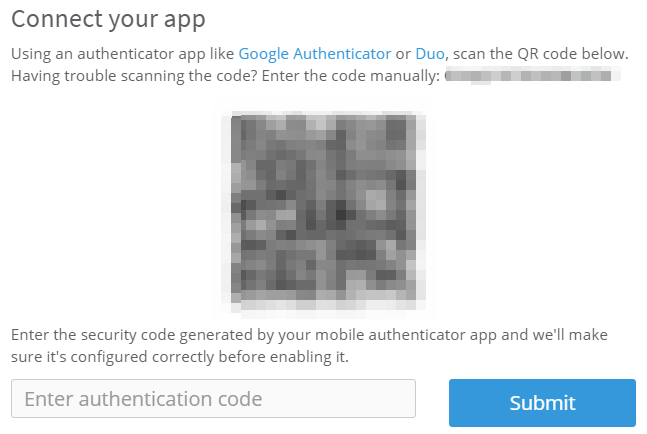
- Using Time Based Tokens, you will want to scan the QR Code using your Authenticator App, and once scaned, enter the 6 Digit code shown in the Authenticator App.
- Using SMS Center Two-Factor Authentication, you will want to enter your contact number included the prefix, the prefix for Australia is +61.
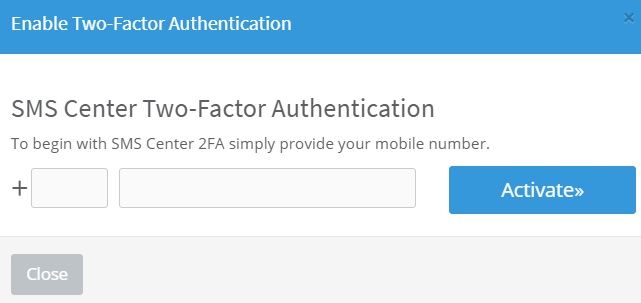
The SMS you receive will always come from our verified SMS Sender ID for Conetix. SMS tokens sent from our systems will appear as either CONETIX or Conetix. - To Confirm the SMS 2FA is configured it will send out a code for you to enter in.
- Upon set up of either method, a list of Backup Codes will be provided. Make note of these codes in a safe location.
These codes can be used in place of the Authenticator App or SMS Code, should they be inaccessible.