
Overview
If your WordPress website ever fails to load with the message of “There has been a critical error on this website“, this is likely due to a plugin update or change to your code somewhere which has caused your website not to load. The error may appear as:
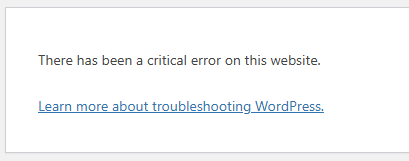
You may also receive an error message via email, if you’re the WordPress administrator user.
The instructions below will help step you through the process to diagnose and mitigate the issue.
Instructions
- Login into Plesk via the Conetix Control Panel.
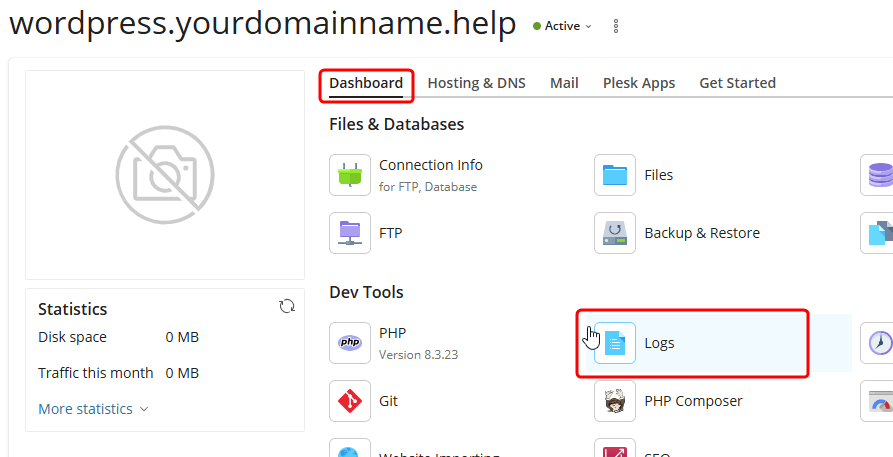
- Navigate to the Dashboard tab under the site in question, then click on Logs.
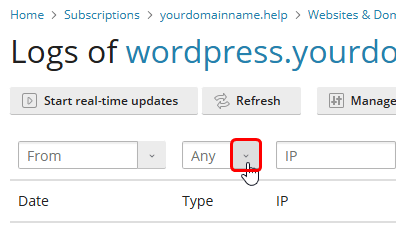
- Above the “Type” column, click the drop-down arrow and untick “access” to only filter by log entries that may relate to the issue.
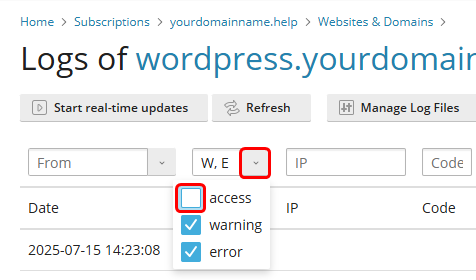
- Generally the error will be a “Fatal” one, so look for any log entries that mention this – sometimes the “Fatal” part will only be part-way into the entry like the below example;

- In this particular example, the error message is stating the name of the file it tried to first open, but could not find;
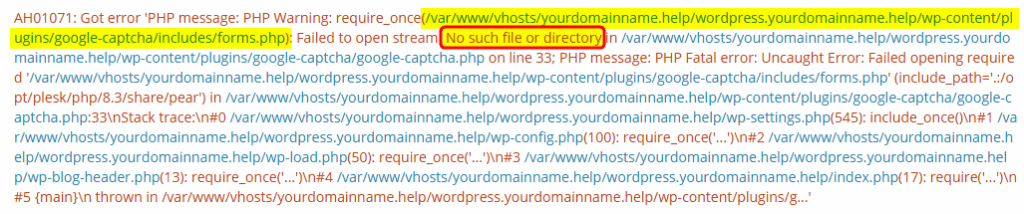
- As such, the issue in this example case is that there is a missing “forms.php” file within a plugin called “google-captcha”.
If the plugin name shown in your error message is not familiar, you may need to Google Search or look into the files of the plugin, to confirm the actual name of the plugin.
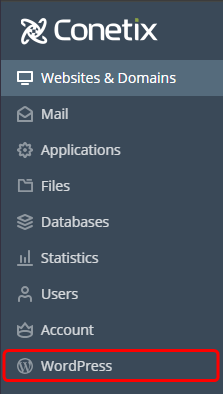
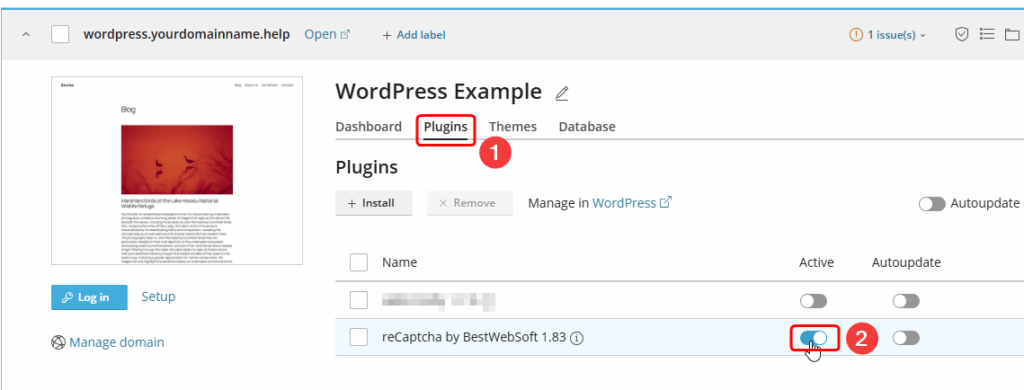
- The next steps will depend on the nature of your error or issue, however in cases like this where a certain Plugin or Theme are the cause, you can use the WP Toolkit within Plesk to disable the troublesome item in order to regain access to the website.
- For this example, we navigate to the Plugins tab under your WordPress installation, then click the “Active” switch next to the troublesome plugin in question in order to disable it;
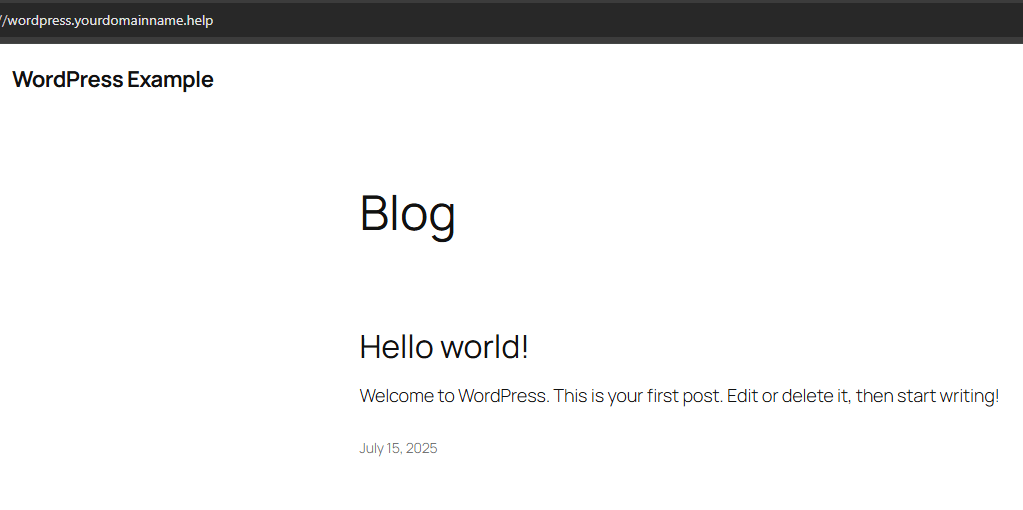
- You may then test loading your website as per normal, to confirm if the Critical Error is now gone.
- You may now need to either refer to your website developer to have them assist in fixing the root cause of the issue, or if you yourself are a web developer you may wish to look at reinstalling, updating, or replacing the source of the root cause, since you should now be able to log into the WordPress admin panel again.
Should you be unable to identify or resolve the issue yourself, Conetix customers may contact our support team for further assistance.