Overview
Sitejet Builder is the free website builder, available across all hosting plans with Conetix. If you’re looking to get started, please read our How to access Sitejet Builder article to begin creating a new website.
If your SiteJet website has been built on a staging or development subdomain (eg, dev.mydomain.com), you can follow this process in order to make it live under your primary domain (eg, www.mydomain.com).
Instructions
Accessing Plesk and Sitejet Staging Site
- Log in to Plesk via the Conetix Control Panel.
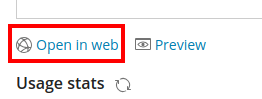
- Go to your existing Sitejet Builder site:

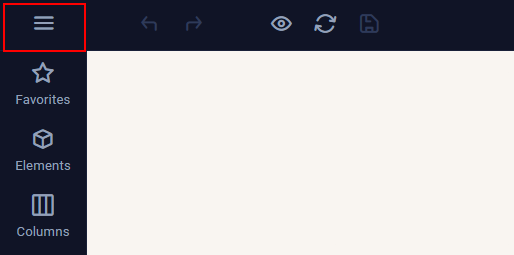
This will open a new tab with the Sitejet Builder editing suite. - In the Sitejet Builder editing suite, click on the hamburger menu in the top left:
- In the Menu, click on Share & Copy Website:
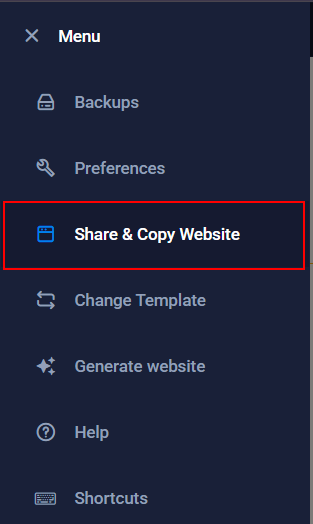
- Copy and note down the ‘Code for Sharing’ as this will be how we import the site to the primary domain.

- Now that we have the code, you want to close the SiteJet Builder, returning to Plesk.
Accessing Sitejet Site for Primary Domain and Importing Site
- Back in Plesk under the Primary domain, click Get Started, then click on Sitejet Builder:
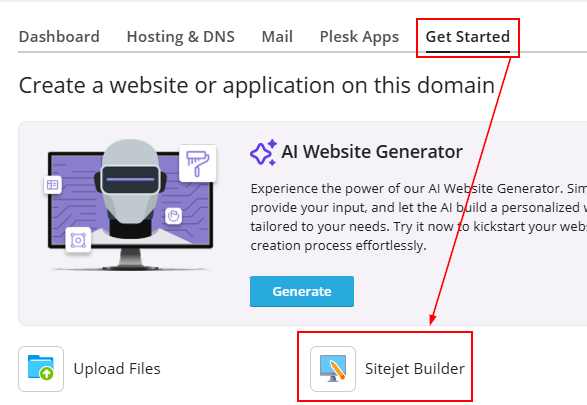
- You will be provided two options to build a website: an AI Website Generator or Templates. As we are importing a site, choose Templates.
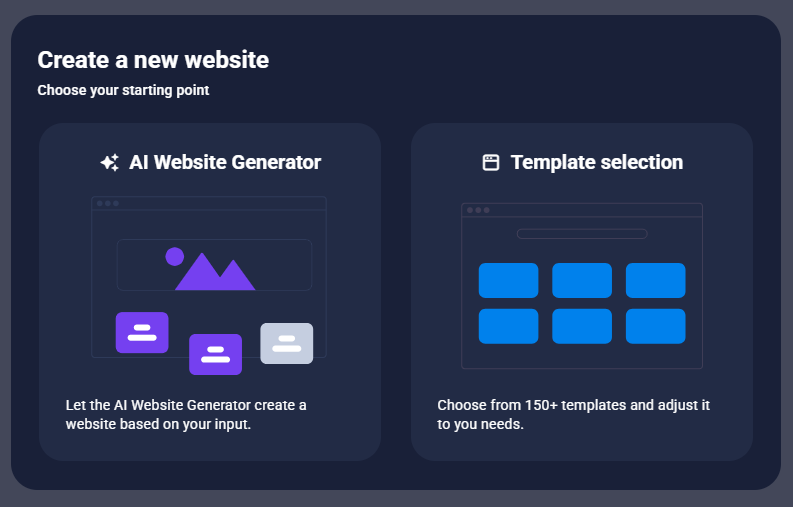
- The page will refresh and will take you to the first step of choosing a template:
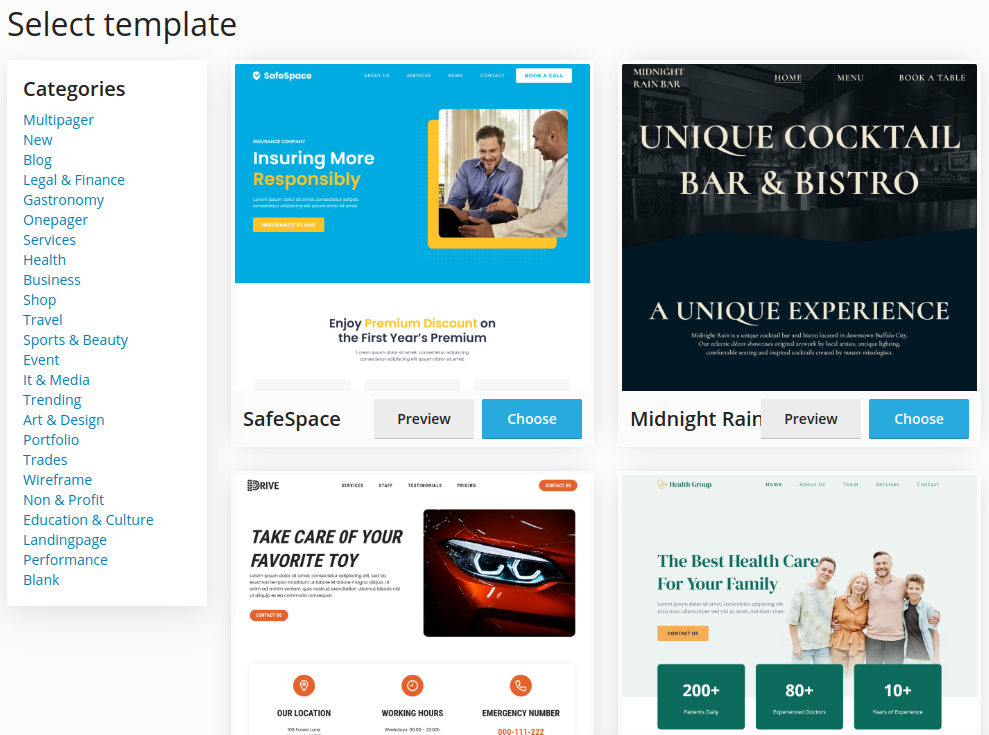
- Once you’ve chosen a template, the page will refresh and load the Sitejet Builder editor, which will now allow us to begin the import of the staging site.
- Once again, we want to click on the hamburger menu in the top left:
- Return to Share & Copy Website:
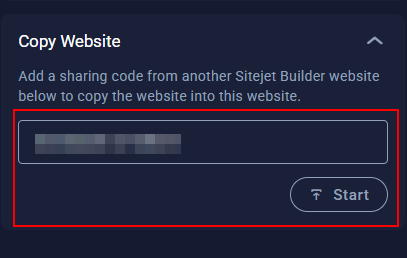
- Using the code copied down, paste it into the ‘Copy Website’ section and click Start:
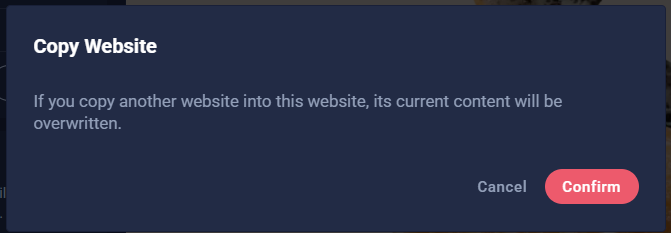
- You will be asked to Confirm the copy as it will overwrite all existing content. This can be done without issue, as the site should have no content:
- Once the import is completed, you will see all of the content updated.
Publishing your Newly Copied Website
- At the top right of the editor, select Publish:

- This will open a new Plesk tab and confirm you wish to proceed:
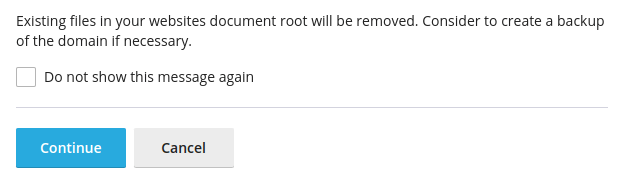
- Once you’re sure you have a copy of any older website data, click Continue to proceed. This will begin the process of transferring the files to your hosting with Conetix:

- Once complete, you can simply open a browser with your website URL, or use the handy Plesk shortcut to open it up for you: