
Overview
This article will step you through configuring Thunderbird IMAP Account on a Windows PC to view emails when Offline (No Internet Connection) and archive old emails.
This can be useful when needing to reduce the storage usage of your email account, as this will move emails from the Mailbox on the Server and Archived locally onto your computer.
Instructions
- Open Thunderbird
- Right Click on your Email Address > Settings

- Next Synchronization & Storage and confirm Message Synchronizing is Checked.
This option is important as the complete email is downloaded not just Email Headers.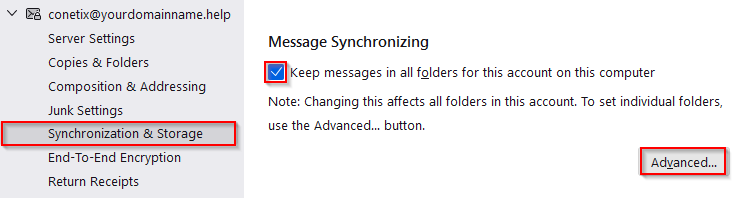
Then Advanced to confirm respective folders are enabled for Offline Use > Ok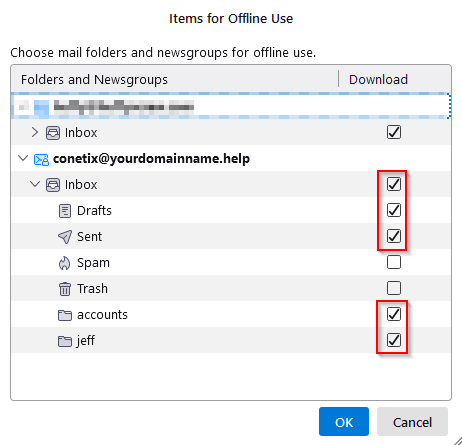
- Next Copies & Folders
Select checkbox Keep message archives in:
Select radio button “Archives” Folder on: and choose Local Folders (from dropdown)
Then click on Archive options to choose preferred format e.g. A Single Folder > OK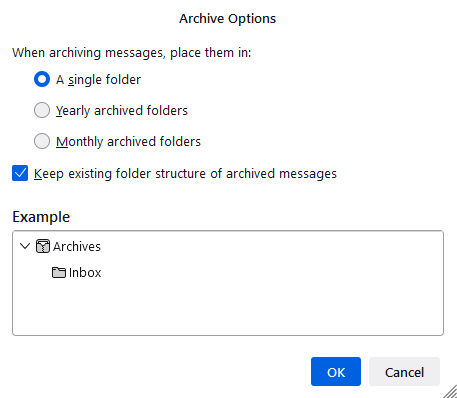
- You are now ready to start Archiving Emails from the Mailbox on the Server to local folders stored on Local PC.
- Navigate to a folder under your Inbox and select emails to be Archived.
Once selected right click in highlighted area > Archive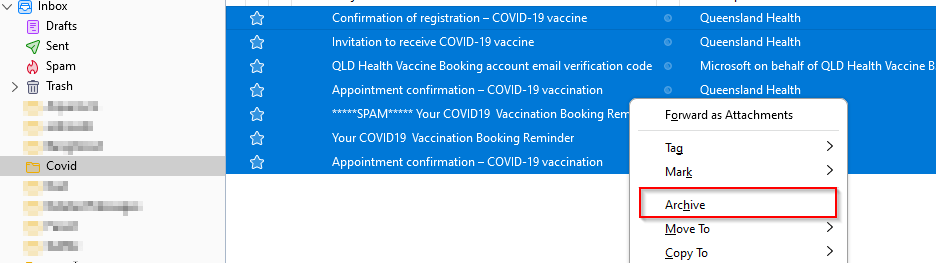
- Expanding Local Folders > Archives – You should see emails have been moved and downloaded to corresponding folder on your local PC.

- Confirm Emails have been moved (not copied) from folder in the Mailbox Inbox Folder.

If you check via Webmail and can see Emails that you have archived Greyed out and/or a Circle/Line symbol as per below you will need to restart Thunderbird to complete Archive process.
Ensure you keep a recent backup of your Archive data file – this data file location can be found by the following.
Right Click on Local Folders > Settings.
Then Browse