Overview
The following support article demonstrates how to installed new plugin WordPress via Parallels Plesk 12. This article uses the plugin “Contact Form 7 Integrations” as an example, however you should only install plugins that you require and are from a trusted source.
Instructions
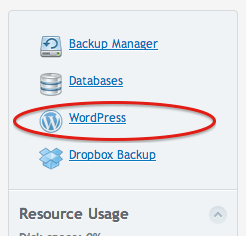
- Once logged in to Plesk, under “Websites and Domains” click on WordPress”.
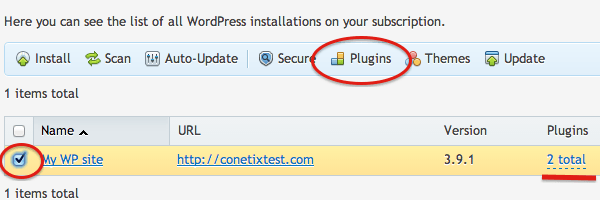
- Under “Wordpress Installations” select the subscription and click “Plugins”. In this example there are currently 2 plugins installed for this subscription.
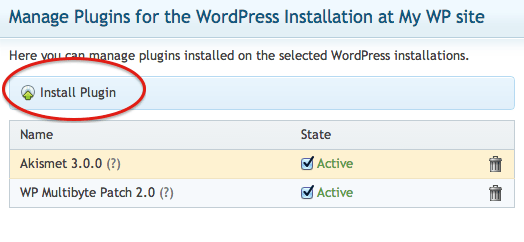
- Under the “Manage Plugins” list, click on “Install Plugin”.
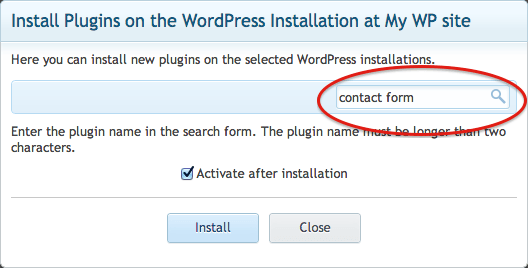
- In the search field type either the name of the plugin or a slight description (e.g. Spam filter, contact form, SEO). Hit “Enter/Return” on your keyboard.
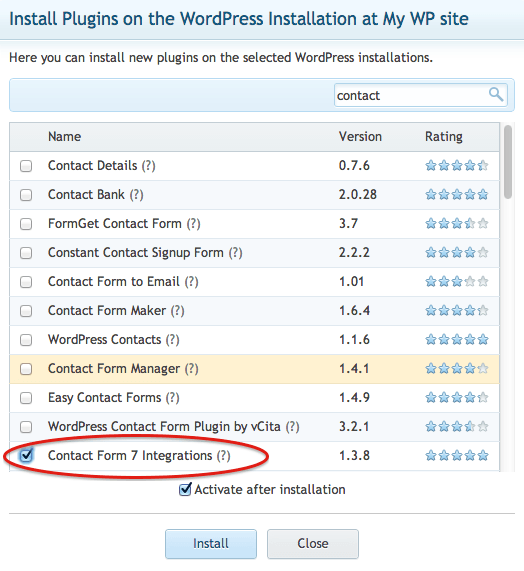
- From the list of options, select the application that you want to install and click “Install”.
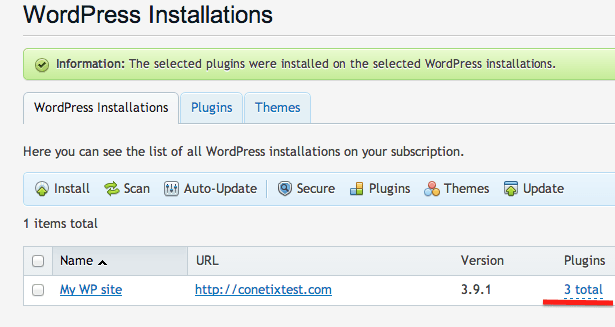
- The plugin has now been installed. Under the subscription there are now 3 plugins listed.