
Overview
If your free Let’s Encrypt certificate is failing with a 400 or 403 error, it may be due to one of two ASP.NET based configuration conflicts. While Plesk sorts some of these automatically, because the web.config can override all settings there’s two scenarios where manual intervention is required.
You may seen an error similar to:

Issue #1: Authorization token is not available
For existing Umbraco installations and similar ASP.NET applications which control access to all files and sub-directorectories, you may get an error similar to:

The key part is “authorization token is not available”, which indicates that the verification file for Let’s Encrypt could not be read. If you’re seeing a 403 error for a different message, this issue does not apply.
Issue #2: Old ASP routing code
The second scenario is where your web.config contains old ASP routing configuration, which is usually a legacy of an old site and/or server it was migrated from. If you expand the Let’s Encrypt error, you may see further details such as:

The key phrase you’re looking for is:
acme-challenge.localhostIssue #3: Umbraco Redirects
Version 7 and below of Umbraco have a separate configuration file for redirects, normally located in Config/UrlRewriting.config. Wildcard redirects within this file are also known to cause issues and may present as the same symptoms as Issue #2.
Fixes
Fix #1: Allow .well-known access
- Login to Plesk or via the Conetix Control Panel.
- Go to the site with the issue, then to File Manager:

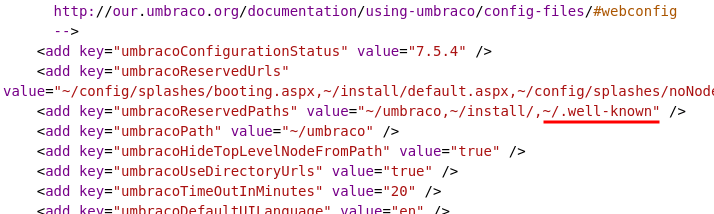
- Within the web.config file, find the umbracoReservedPaths configuration line and set this to have a value of “~/umbraco,~/install/,~/.well-known“. It should look similar to this:
- Next, find the staticContent section of the web.config file and insert:
<remove fileExtension="." /><mimeMap fileExtension="." mimeType="text/plain" />
This will ensure the right MIME type is served for the .well-known file used by Let’s Encrypt. A working configuration should look like: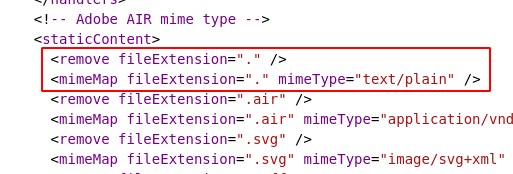
- Go back to SSL Certificates and re-issue the certificate.
Fix #2: Remove obsolete ASP routing code
- Login to Plesk or via the Conetix Control Panel.
- Go to the site with the issue, then to File Manager.
- Within the web.config, search for “runAllManagedModulesForAllRequests“:
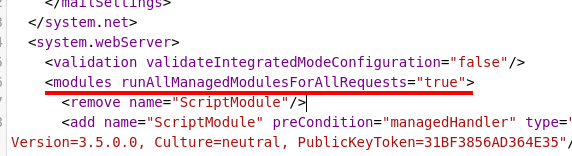
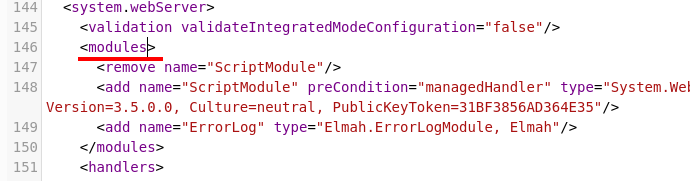
- If it contains a line like the example above, edit the line and remove “runAllManagedModulesForAllRequests” option from the module line. It should now look like:
- Go back to SSL Certificates and re-issue the certificate.
Fix #3: Remove wildcard redirects
- Login to Plesk or via the Conetix Control Panel.
- Go to the site with the issue, then to File Manager:
- Edit the Config/UrlRewriting.config and search for any wildcard redirects. They may look like:

- Remove and re-implement these either directly within Plesk or direct within the web.config file (if they’re still required).
- Go back to SSL Certificates and re-issue the certificate.
If you’re experiencing a different issue or you’ve followed the above and it’s still not working, please don’t hesitate to contact our support team who will assist further.