
Overview
This article will guide you through the process of disabling or deleting WordPress comments. When enabled, comments on a WordPress site can lead to malicious users creating comments to spam you or other websites.
If your website does not need comments enabled you should disable them.
Instructions
Disabling Comments in WordPress
- Log into your WordPress website.
- On the left go to Settings then Discussion
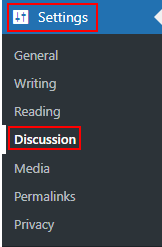
- Now, under Default post settings you want to disable Allow link notifications from other blogs (pingbacks and trackbacks) on new posts and Allow people to submit comments on new posts

- These settings will only apply to new posts and they can be set per post as well.
- If you are making these changes to an existing site you will also want to enable to option for Users must be registered and logged in to comment

Disabling Comments via a WordPress Plugin
- Log into your WordPress website.
- Go to Plugins, Add New:

- In the right-hand search bar, search for “Disable Comments“. You should then find the Disable Comments plugin by WPDeveloper:

- Click Install Now, then Activate.
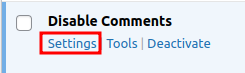
- After it’s been activated, it should take you back to the plugins page. Within the Disable Comments plugin, select Settings:
- For most business sites, simply select “Everywhere“:

(Options exist to only block for specific post types if required as well) - Click “Save Changes“.
You have now successfully disabled comments on your WordPress website.
Deleting Comments via a WordPress Plugin
- Within the Disable Comments plugin, select Settings:
- Click on “Delete Comments“:

- Then select “Everywhere“:
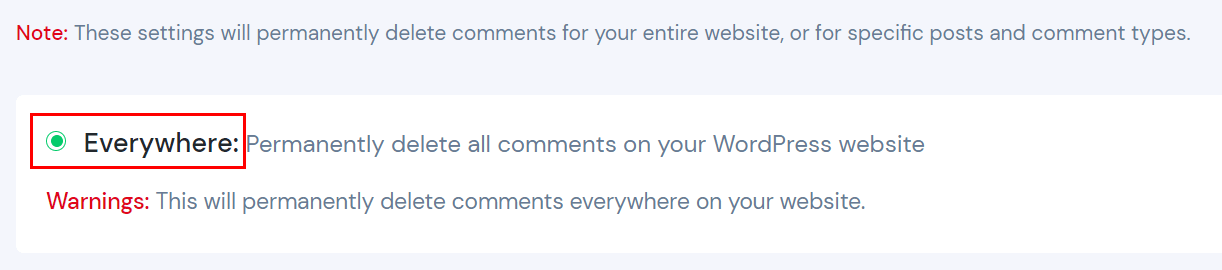
- Click “Delete Comments” at the bottom of the page:

- Confirm you would like to proceed in deleting comments and select “Yes, Delete It”:

You have now successfully deleted comments from your WordPress website.