
Overview
This article will cover how to change your email account password through the Conetix Admin Panel.
Instructions
- Firstly, login to the Conetix Admin Panel.
- Once on the home page, select the ‘Services’ tab
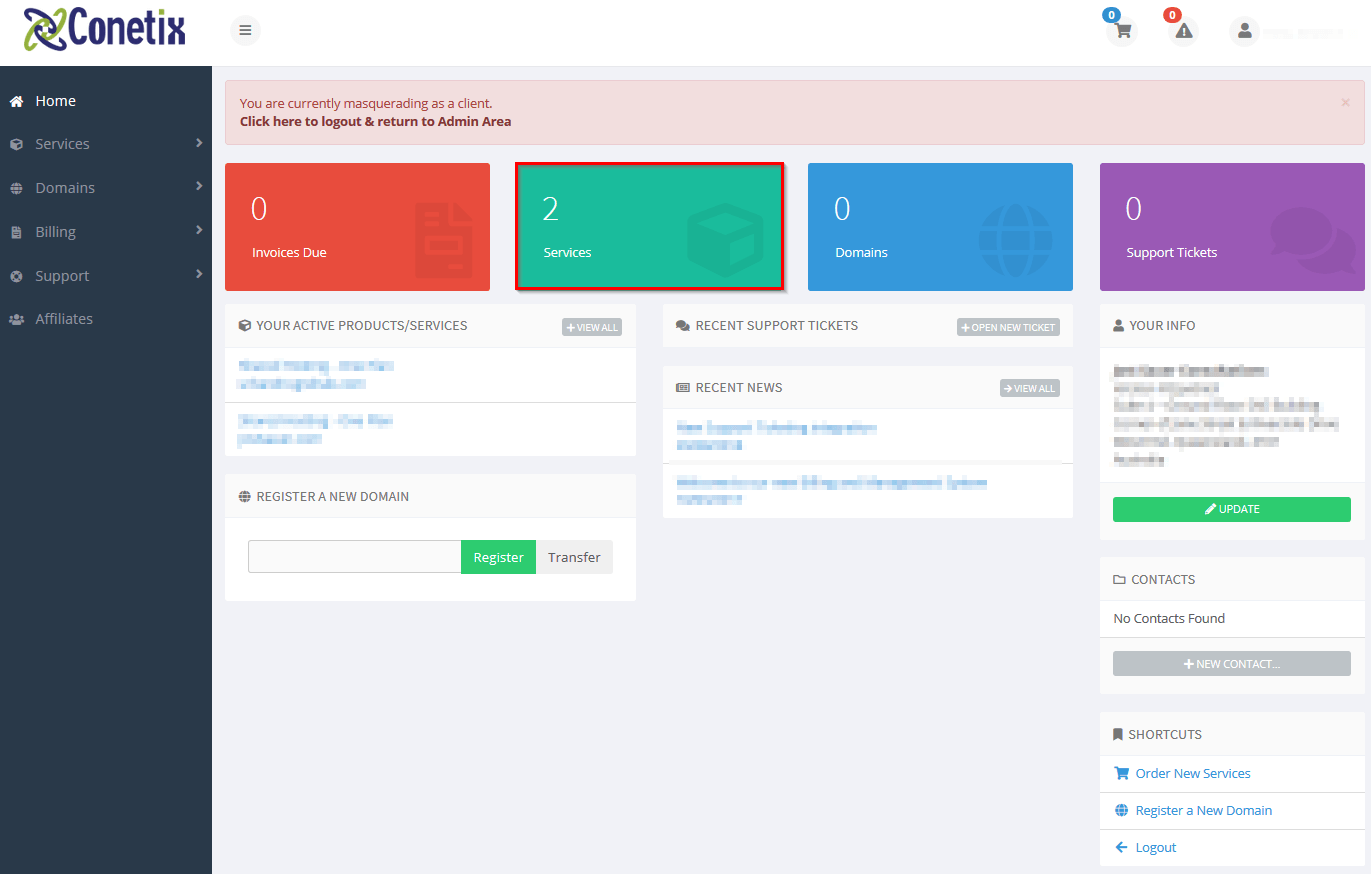
- Navigate and select the relevant service with the emails you wish to update and select ‘Manage Product’

- Under ‘One Click Login’ select ‘Plesk’

- Select Mail on the left

- Select the email address you would like to modify the password for by clicking on the address.

- Click Generate to generate a password.
- Next click Show to see the newly generated password.
Note this down for later use.
- Next click OK to save the password.

- You can now enter the new password on your device(s).
Warning
Once you have updated the email account password, you will then immediately need to update the email password on all devices which are accessing the email account.
If this is not completed promptly you run the risk of your Public IP blocked to our hosted server due to many failed login attempts.