
Overview
This article details the process of setting up your IMAP email in the Apple Mail App on an iPhone.
Instructions
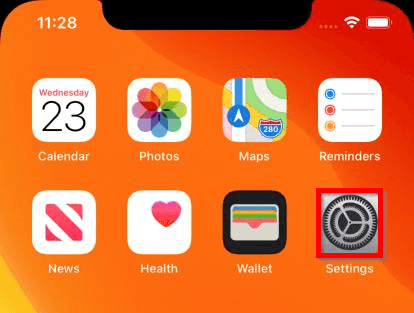
- Open the Settings App:
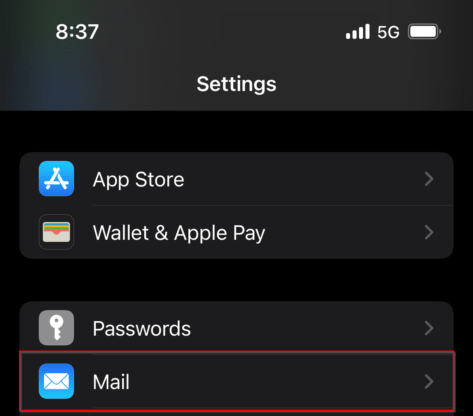
- Go to the Mail settings:
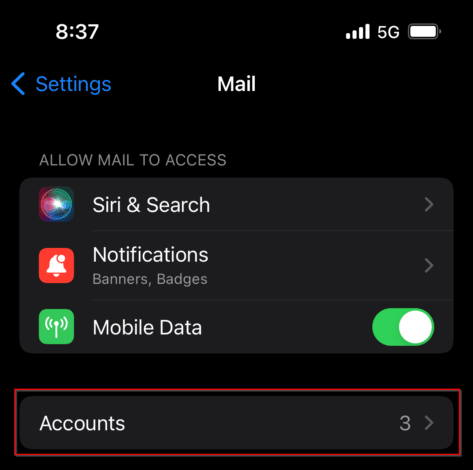
- Select Accounts:
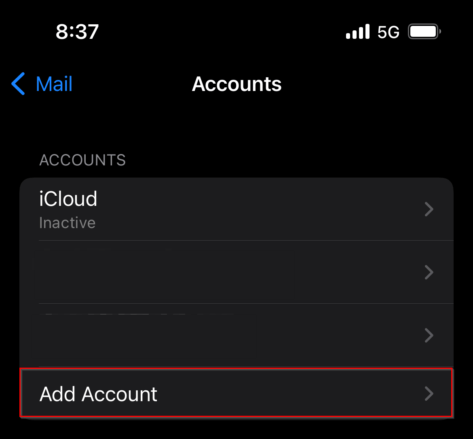
- Select Add Account:
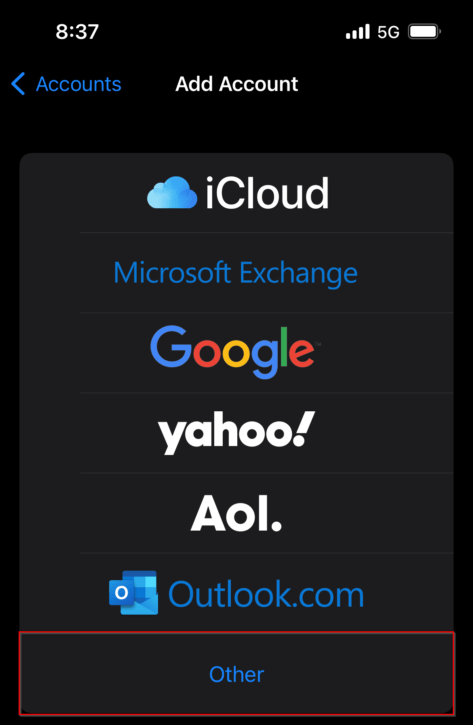
- Select Other:
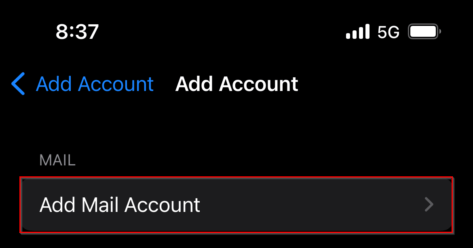
- Select Add Mail Account:
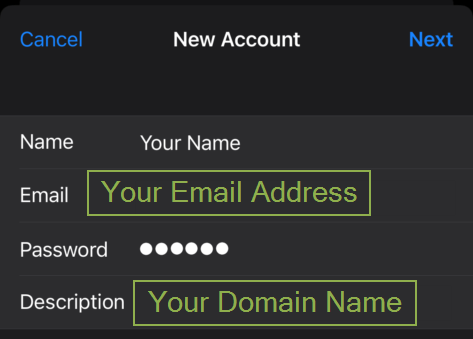
- Enter your name, email, password, and a description for the email:
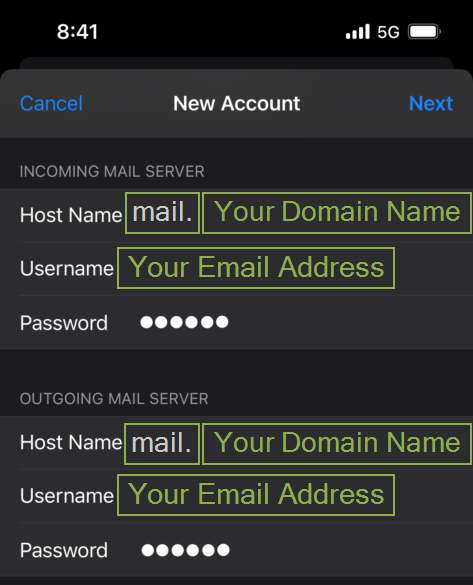
- Enter the Incoming and Outgoing Hostname and your Email Address and Password:
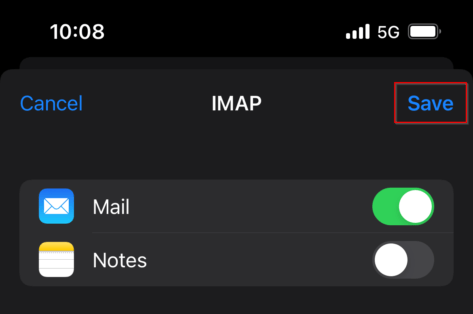
- You will then be asked if you would like to associate other services with the email, leave only Mail selected and select Save:
- Once saved, the email Address will be added to the iPhone, and you will see emails propagating in the Mail App.