
Overview
This article will detail the process of setting an Office 365 Mailbox on an iPhone.
Instructions
- Open the Settings App.
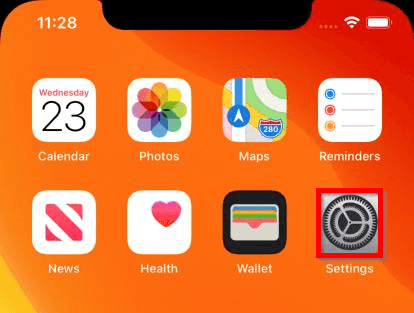
- Depending on your version of iOS, select the relevant option;
- iOS 14: Mail -> Accounts
- iOS 13 & iOS 12: Passwords & Accounts
- iOS 11: Accounts & Passwords
- iOS 10: Mail
- iOS 9 & Earlier: Mail, Contacts, Calendars
- Select Add Account.
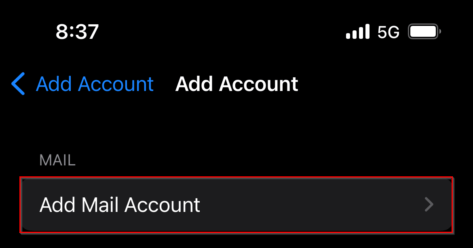
- Select Microsoft Exchange.

- Enter your Email Address and a Description. Then select Next.
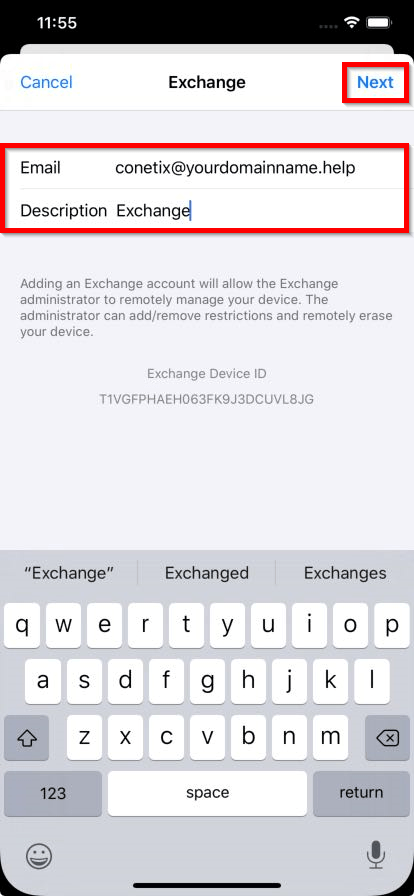
- When prompted, select Sign In.

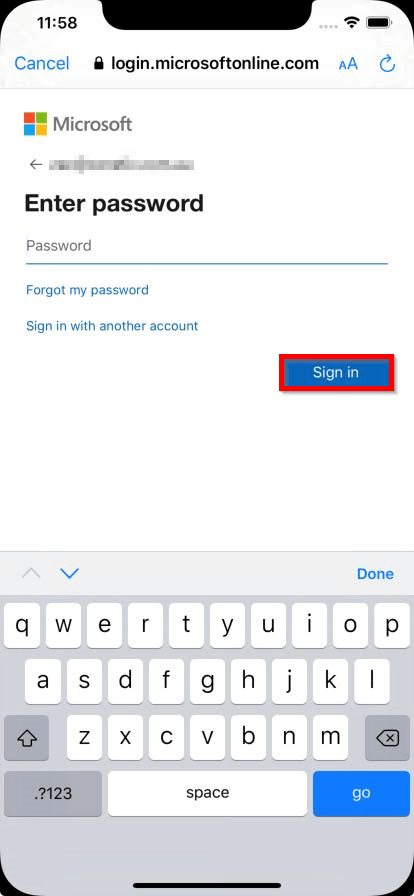
- Enter your Password for the Account and select Sign in.
- Select the services you wish to allocate to the email address. Then select Save.
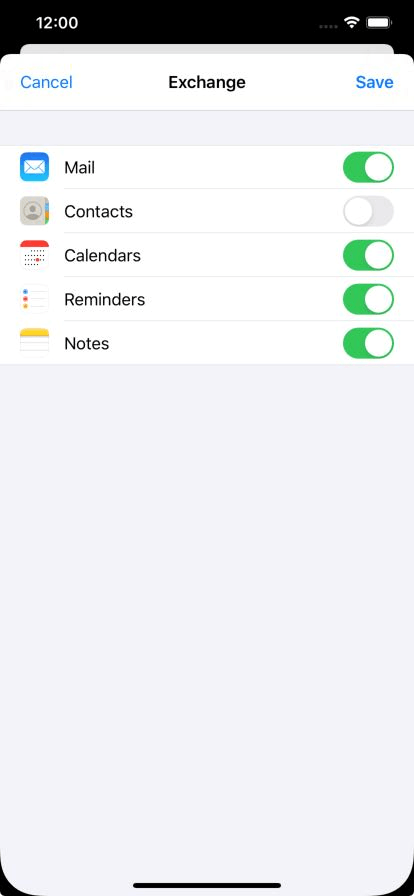
You have successfully setup your Office 365 Account on the iPhone Mail App.