Overview

This support article describes how to update your incoming and outgoing hostname email settings on an iPhone.

If you are looking to add an email account to an iPhone, we have the article below
iPhone – Setup IMAP Mail Account

Instructions

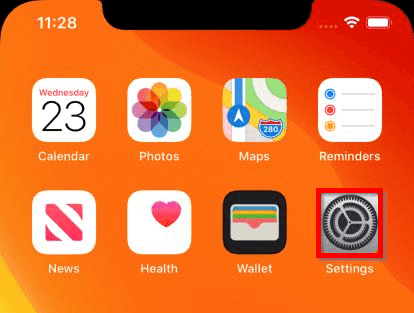
  1. Open the Settings App.
    iphone - update incoming and outgoing email settings
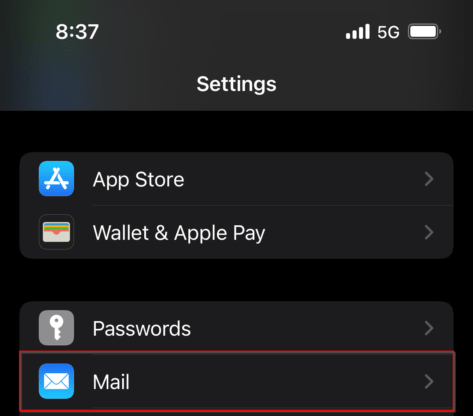
  2. Go to the Mail settings.
    iphone - update incoming and outgoing email settings
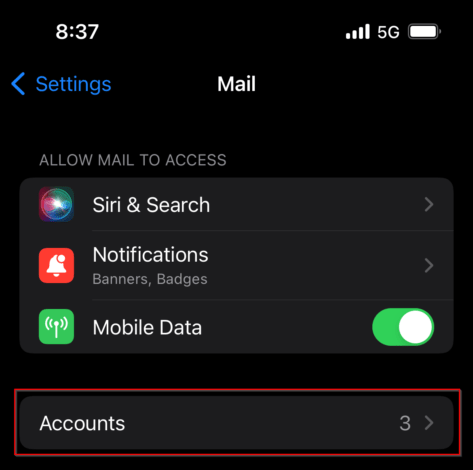
  3. Select Accounts.
    iphone - update incoming and outgoing email settings
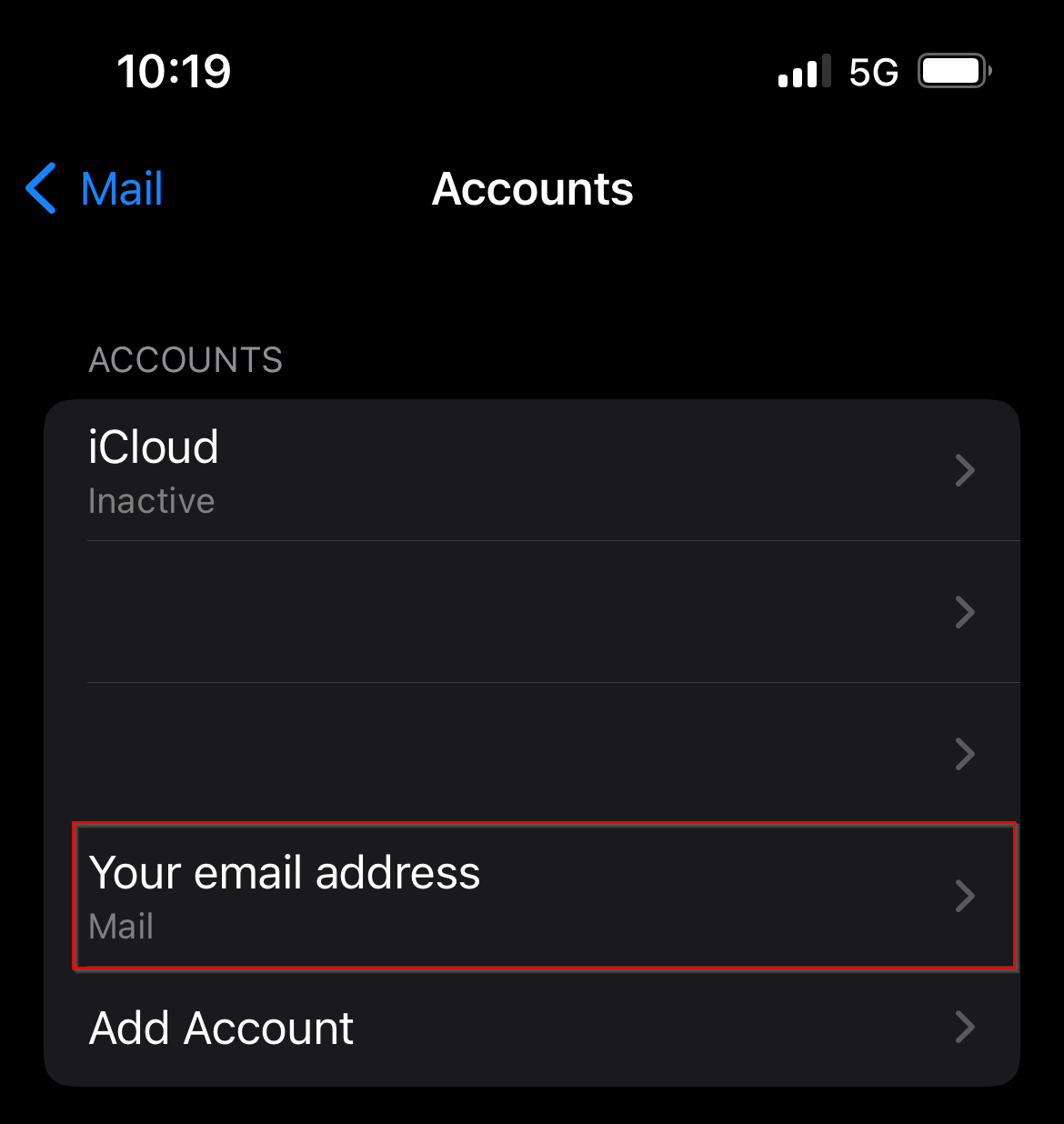
  4. Select your existing mailbox.
    iphone - update incoming and outgoing email settings
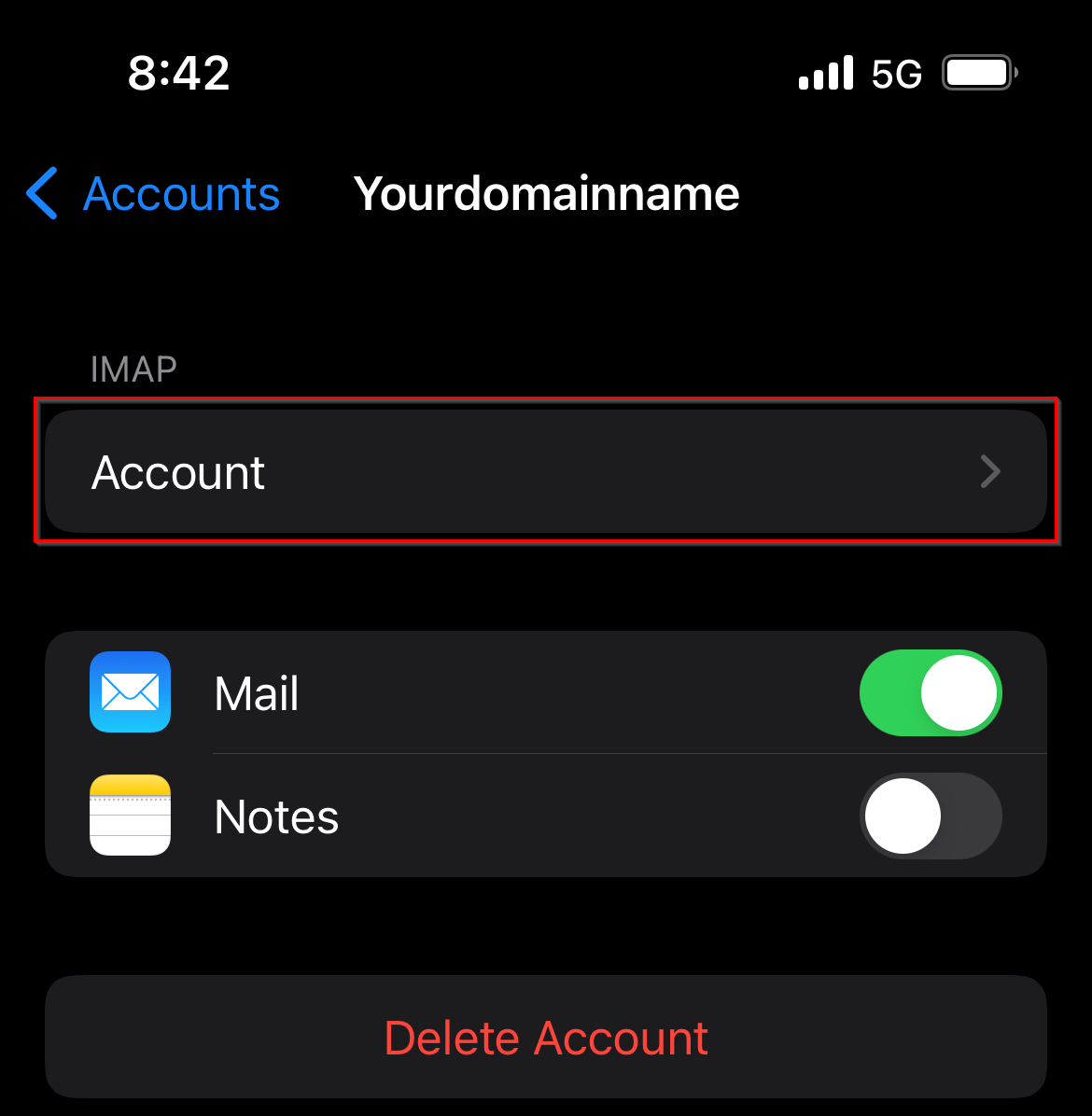
  5. Select Account under IMAP.
    iphone - update incoming and outgoing email settings
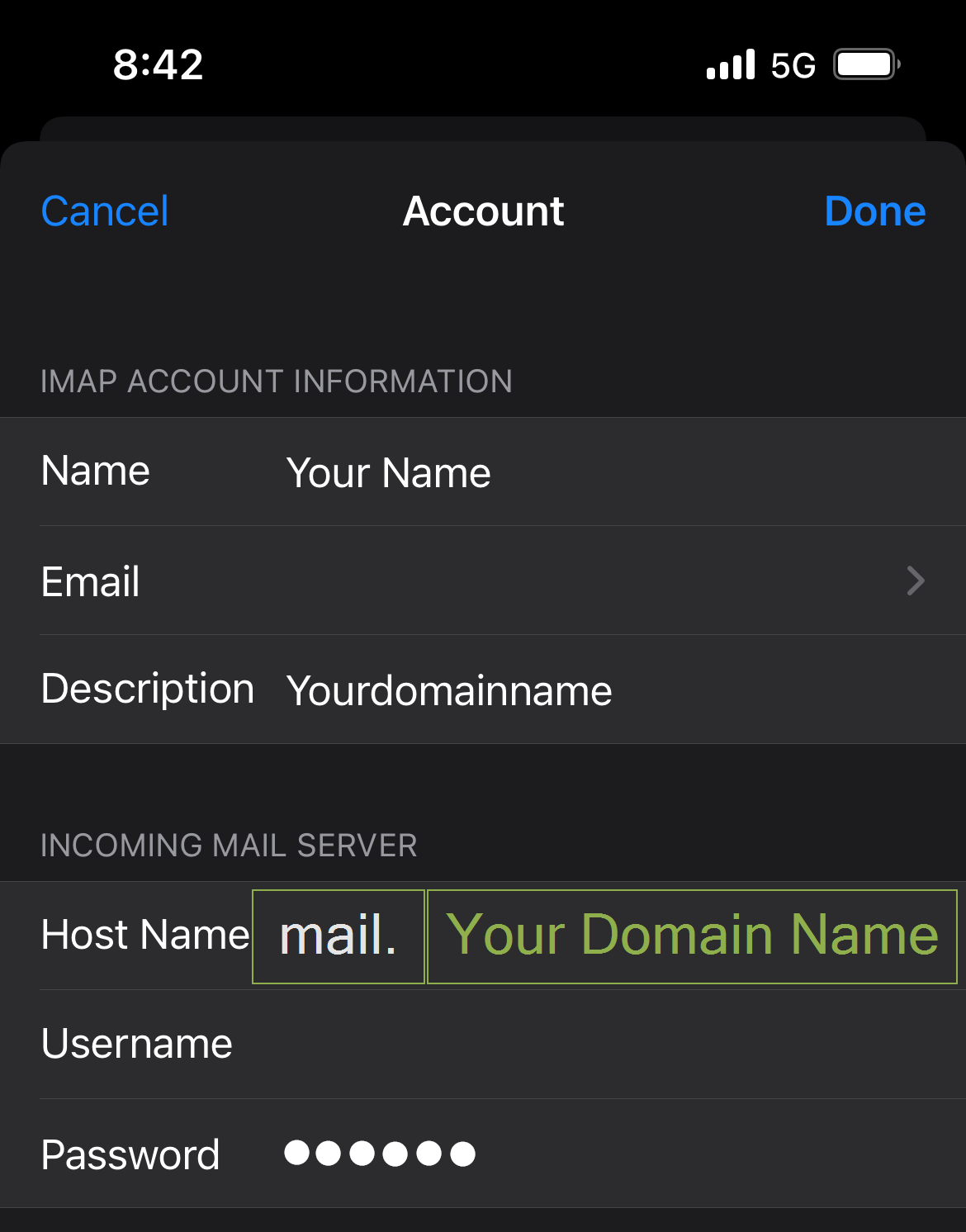
  6. Under Incoming Mail Server, enter the new Host Name.
    iphone - update incoming and outgoing email settings
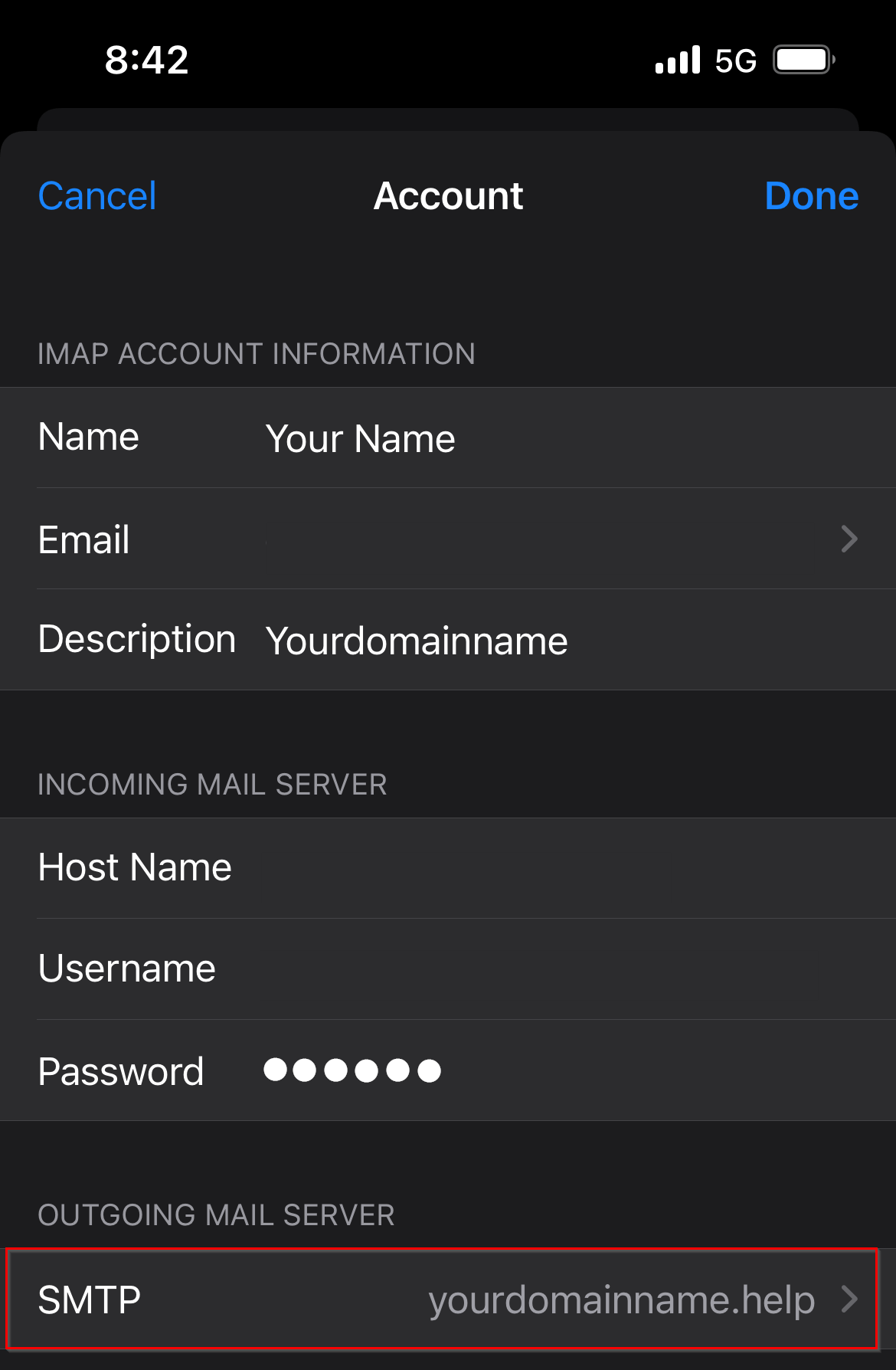
  7. Select SMTP under Outgoing Mail Server.
    iphone - update incoming and outgoing email settings
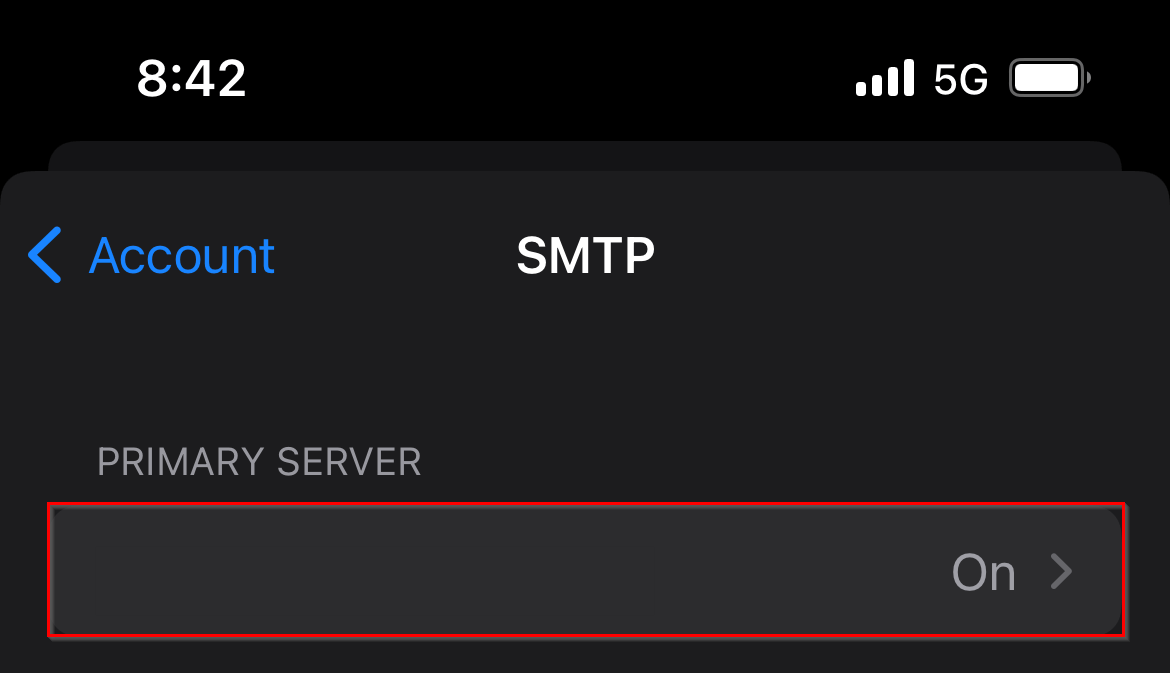
  8. Select your outgoing server under Primary Server.
    iphone - update incoming and outgoing email settings
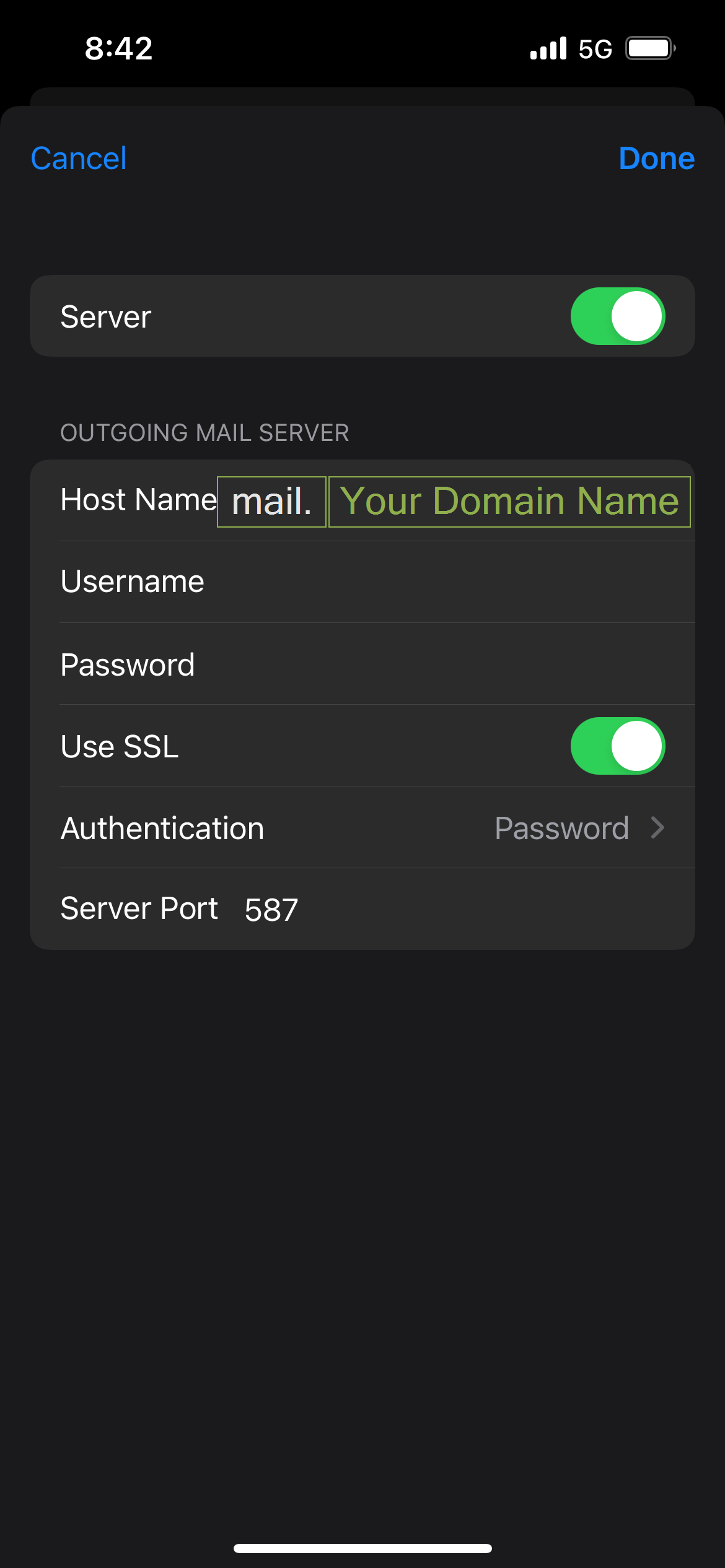
  9. Enter the new Hostname.
    iphone - update incoming and outgoing email settings
  10. Press Done in the top right to verify the new credentials.
Was this article helpful?

Related Articles