
Overview
This article describes how to add an email account to Outlook for Mac.
Instructions
- Open Outlook App
- Click on Tools in the top Nav, then Accounts.

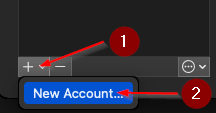
- On the bottom left, click on the + symbol, then New account…
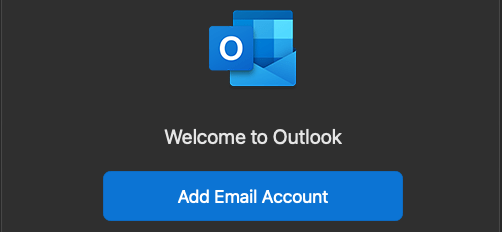
- Next Add Email Account.
- Enter your Email Address, Then Continue.
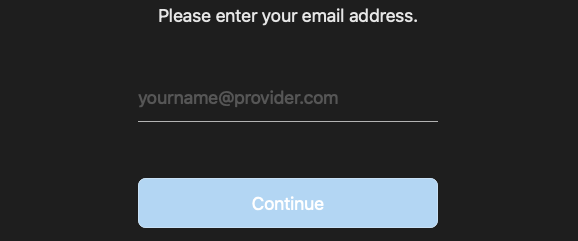
- Continue

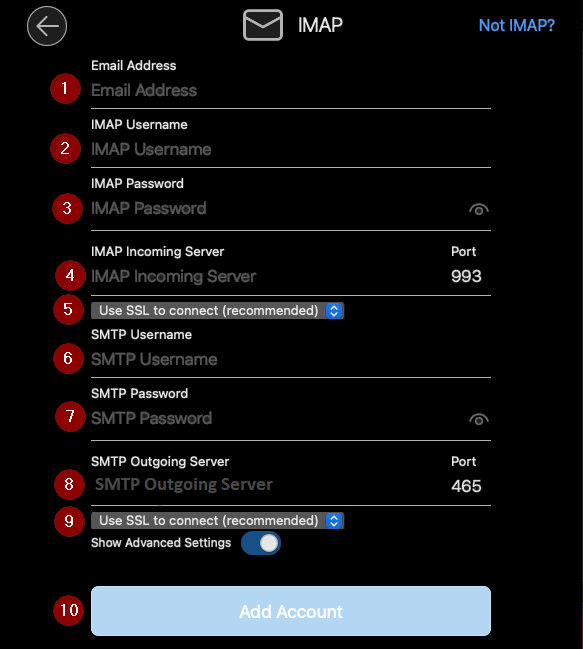
- Click on the Slider to Show Advanced Settings.
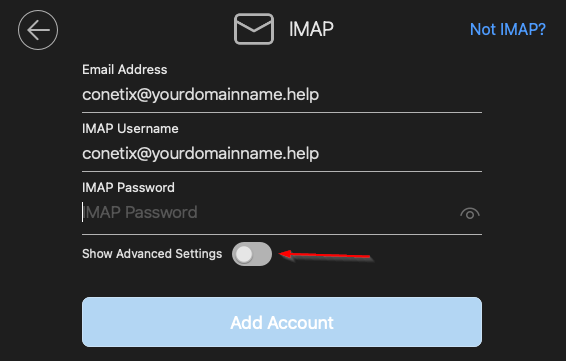
- Enter your Email Address, Password and settings provided by Conetix, then Add Account.
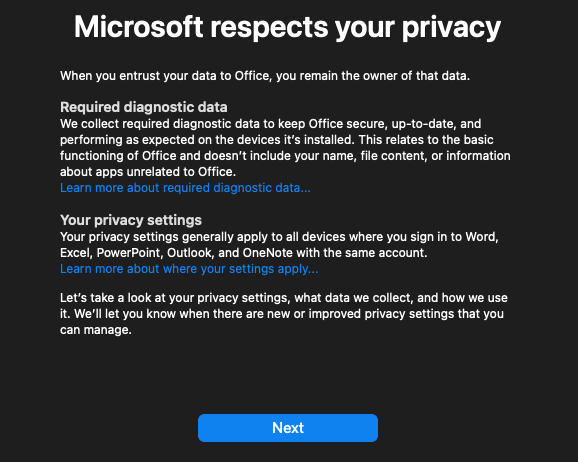
- Next.
Select Yes or No to Do you want to send optional data about Office to Microsoft, then Accept.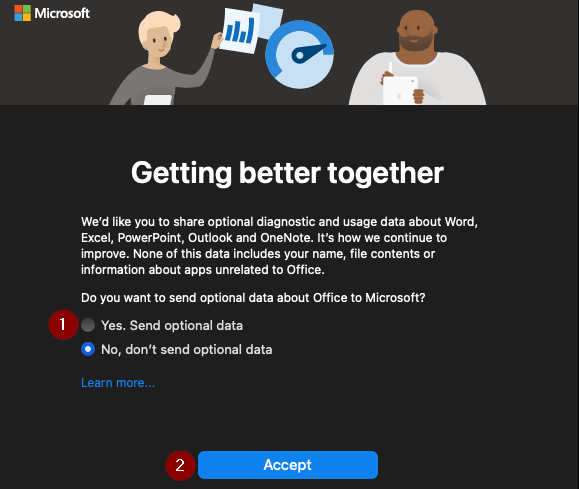
Done.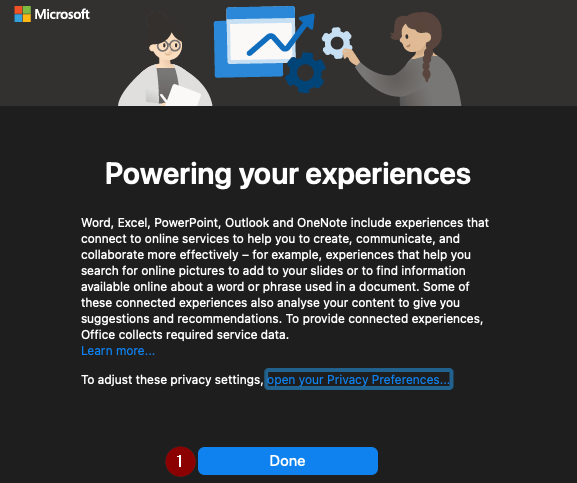
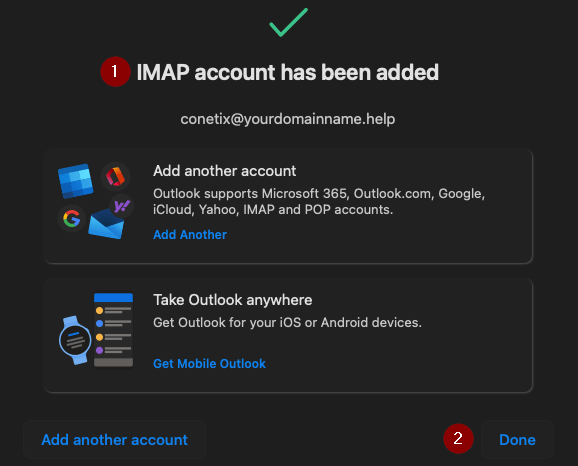
- You should see IMAP account has been added, then Done.
- Your Email Account will now display in Outlook, click the red cross to close Outlook account settings.
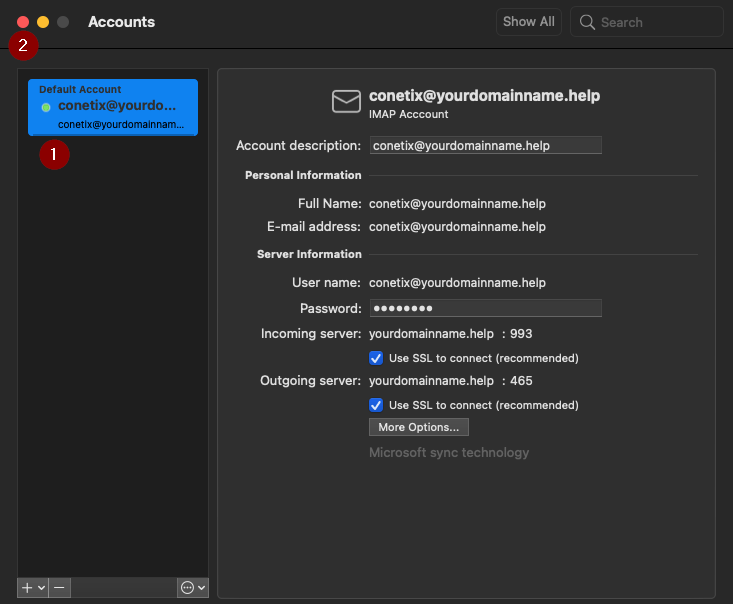
- Adding Email account to Outlook for Mac has been completed.